Pier source
Source clip
The seaside performance. A cast of your own.
Add a clip to estimate credits
Review the cost before you generate.
Source clip
Source clip
Source clip
Community example
By phuneralyraim1Make a Raindance AI video with the people and characters you want on the pier. Start with a reference clip, add clear character images, and use Motion Transfer for a new interpretation or Object Swap for a selected replacement. The performance is already there to guide you: choose your cast and the moment worth making your own.
The Raindance AI trend puts a new cast into a recognisable seaside performance: one person begins seated on a wooden pier, another enters the scene, and attention moves between the performers and their close-ups. The format is associated with Dave and Tems’ Raindance performance. The appeal is seeing familiar faces in an existing music-video moment. In this context, Raindance means that performance format, rather than a generic effect that makes someone dance in falling rain.
Before choosing a Raindance AI generator, decide whether you want a fixed photo template or control over an existing clip. Dedicated photo tools supply their own scene. Genjutsu AI takes a source video plus one to eight reference images, so you can work with the exact passage that interests you and describe the character change yourself.
The reference videos here show different interpretations of the same setting. Use them to compare character style, framing and timing before choosing your inputs. The supplied clips are creative references; they are not presented as videos generated and tested through Genjutsu AI. The illustrated character replacement further down is a static teaching example.
Motion Transfer is a useful starting point when you want the whole Raindance performance to inspire a new version. The source gives you seated gestures, entrances, reactions and camera timing to work from. Your reference images describe who should appear, while your prompt explains how those people fit the scene. This gets you to a concrete creative brief quickly, without writing every movement from scratch.
For a duet, give each performer a stable role. Reference 1 can be the person seated at the beginning; reference 2 can be the person who approaches and appears in later close-ups. Those descriptions remain useful when the camera changes angle. Left and right alone may become ambiguous after a cut, so add clothing, hairstyle and the first action each person performs.
A Raindance AI video can use realistic characters, a stylised cast or a different wardrobe. Keep the first attempt focused enough to evaluate. The source guides motion and pacing, but it does not guarantee identical faces, gestures, lip movements or cuts. Watch the result all the way through, especially when two people overlap or the camera moves into a close-up.
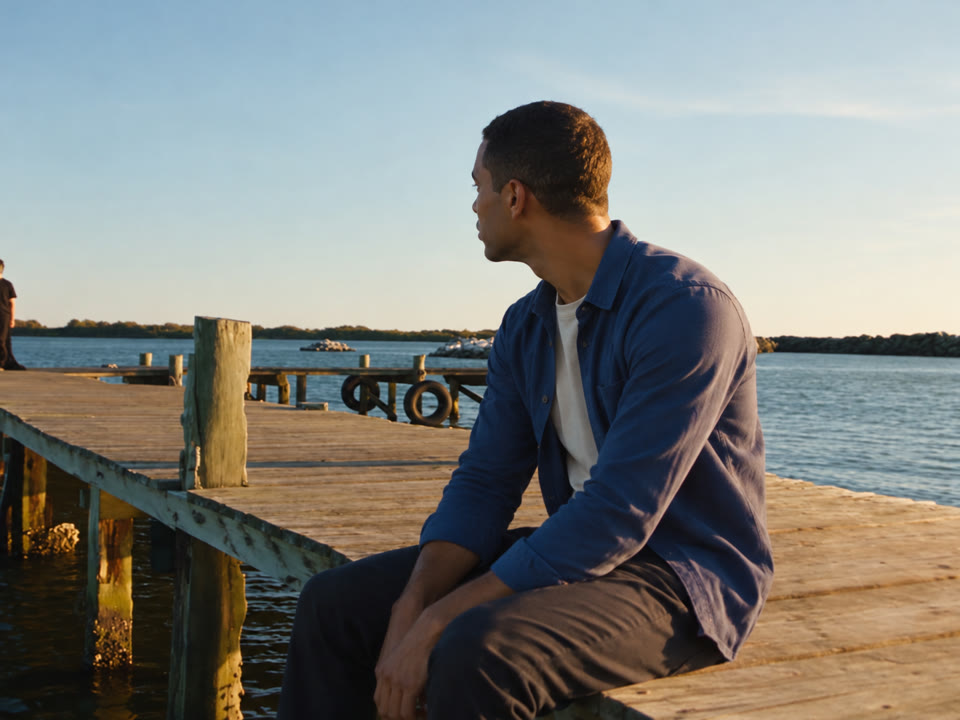
Choose Object Swap when the existing pier scene is already right and you want to change one selected person. The seated performer is a clear example: identify the gray hoodie in the opening shot, attach the replacement character image, and ask the model to keep the partner and surroundings consistent. The source, reference and edited frame below illustrate that decision.
Your Raindance AI prompt should say whether the replacement follows that person throughout the selected clip. If the same character appears again in a close-up, describe the role consistently rather than adding a second identity for that shot. A reference with a visible face and the intended outfit gives you a more specific brief than a distant group photo.
A targeted replacement can still change nearby details. Compare the pier rails, hand positions, hair edges and contact between performers as well as the face. If the result changes too much at once, start with a shorter passage that clearly shows the selected person before trying the whole duet.
| Your creative goal | What to provide | Suggested mode |
|---|---|---|
| Reinterpret the seaside performance with a new cast | Source clip + one clear reference per role | Motion Transfer |
| Replace the seated performer or their partner | Source clip + replacement image + target description | Object Swap |
| Start with only two photos and no video | Choose a supplied source first, or use a separate photo-to-video tool | Genjutsu AI requires a source video |
Source video frame AI-generated character reference Illustrative recast · AI-generated still
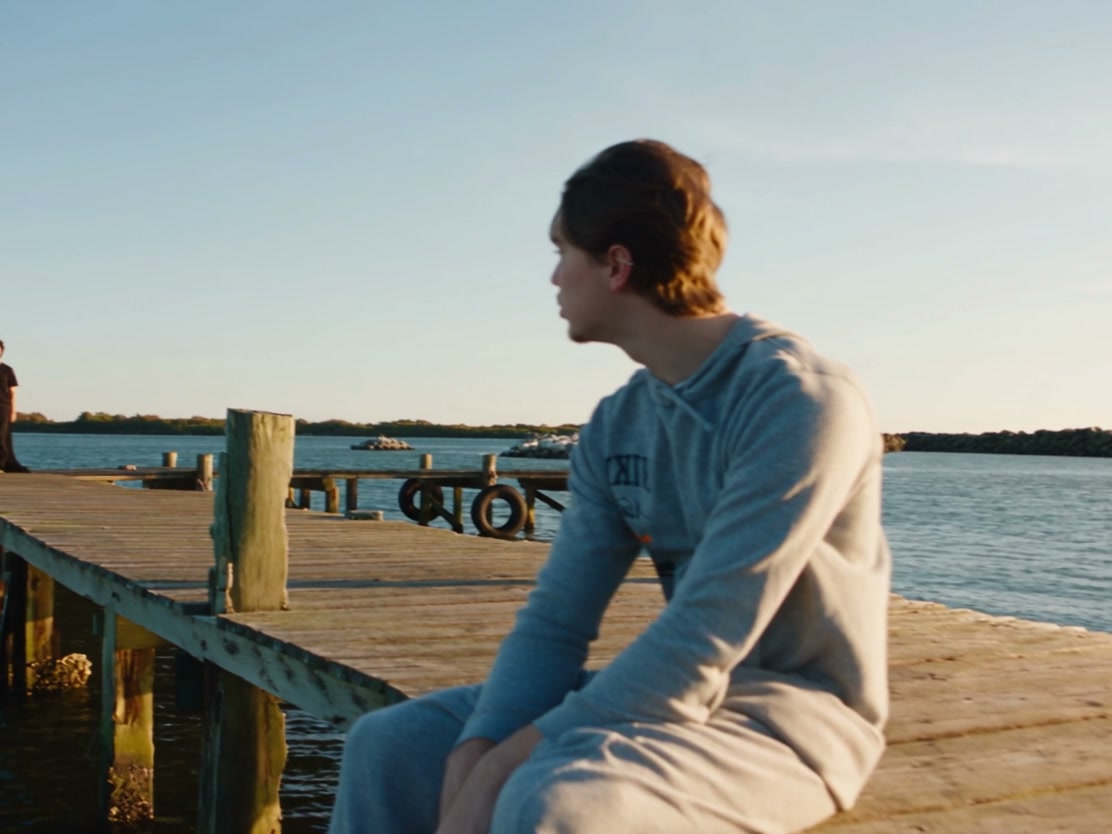
The tool at the top of this page starts with a source clip and an applied, editable Motion Transfer prompt at 480p. Add your own reference images. Use the video control to choose a supplied clip or your own footage. The full clip stays selected until you use Edit clip to change its duration or framing; you can prepare these inputs before signing in. Recreate and the final “Create my Raindance video” button open the full workspace.
Watch the clip before deciding on a duration. The full starting source is about 29 seconds, but your first attempt can use a shorter 4–30 second selection. Use Edit clip, then keep the entrance, gesture or close-up you actually want to transform. Loading the source does not start a generation or spend generation credits.
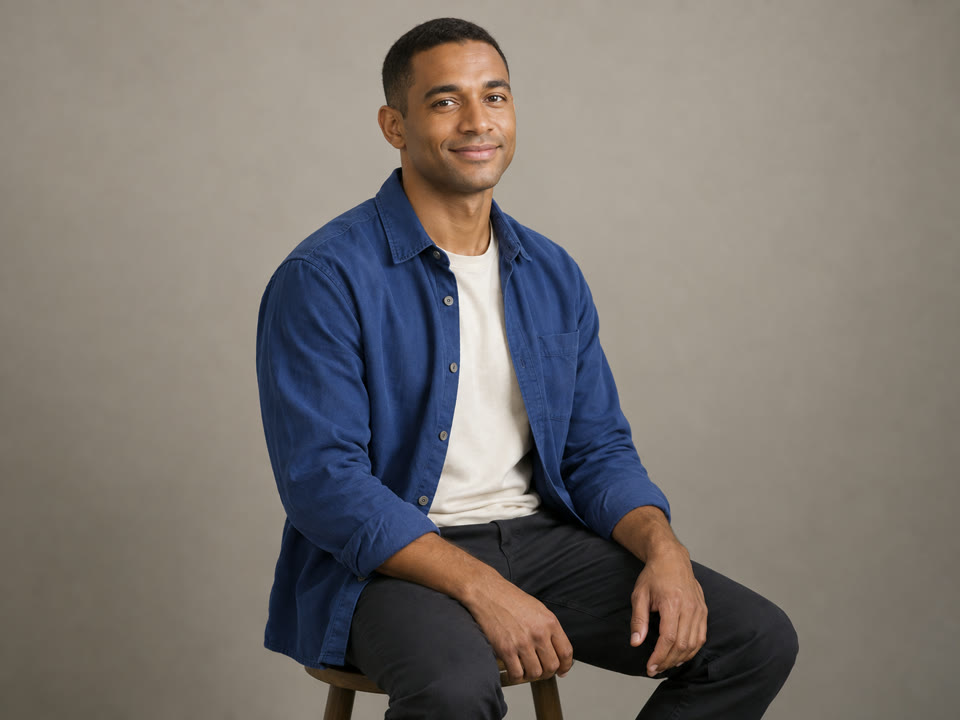
Upload one to eight reference images. For a two-person Raindance AI video, start with a separate clear image for each performer and describe which role belongs to each one. Choose a visible face, consistent hairstyle and clothing that you want in the result. If you only want to replace one person, begin with that person's replacement reference.
Choose Motion Transfer for a broader interpretation or switch to Object Swap for a selected subject. Adapt the prompt examples below to the actual source. You can describe an intended outfit change, but avoid mixing several incompatible looks for the same performer across your references.
Choose 480p or 720p, then Generate. Sign in if prompted to get the confirmed quote for your prepared clip. Check the inputs and credits, add credits if needed, then choose Confirm & generate when ready. Signing in or paying does not start generation. The cost follows the selected duration, rounded up to a whole second. A finished revision is another generation, so use a short first take to evaluate the cast before committing to a longer version.
When your Raindance AI video is ready, compare the opening frame, each cut and the final moment. Check that the two roles remain distinct and that the clothing and expressions make sense. Download the result you want to keep, then review its audio and finish the post in your editor or publishing app.
Visual walkthrough: one source frame, a new character reference and an AI-generated edit of that frame. The final image illustrates the intended change; it is not a generated video result.
The Motion Transfer example below is already applied in the tool at the top. Edit it to match your images. Switching to Object Swap keeps your current text, so replace or adapt the prompt for that mode. Start with role assignments and the change you want. These are editable examples, not tested recipes. Match the descriptions to your source video and remove instructions for actions or camera moves that the selected passage does not contain.
Recast the two adult performers in the source video using my reference images. Reference 1 is the person seated on the pier at the start. Reference 2 is the person who enters and takes the later close-ups. Follow the source performance, gestures and camera timing. Keep each role distinct throughout the selected passage, using the face, hairstyle and outfit from its reference. Retain a recognisable seaside pier in warm evening light. Avoid extra people, blended faces and new scene changes.
For your first Raindance AI attempt, use a short moment where both roles are easy to identify. A clear assignment is more useful than repeating a long list of cinematic adjectives.
Replace only the adult performer in the gray hoodie who is seated on the pier at the beginning. Use the adult man in my reference: short black hair, cobalt blue overshirt and ivory T-shirt. Match the seated pose, scale, gaze direction and warm side lighting. Apply this identity wherever that same performer appears in the selected clip. Keep the other person, wooden pier, water and camera framing as consistent with the source as possible.
This prompt matches the illustrated change. Rewrite the clothing and role description for another reference clip; Object Swap does not promise that every surrounding pixel stays unchanged.
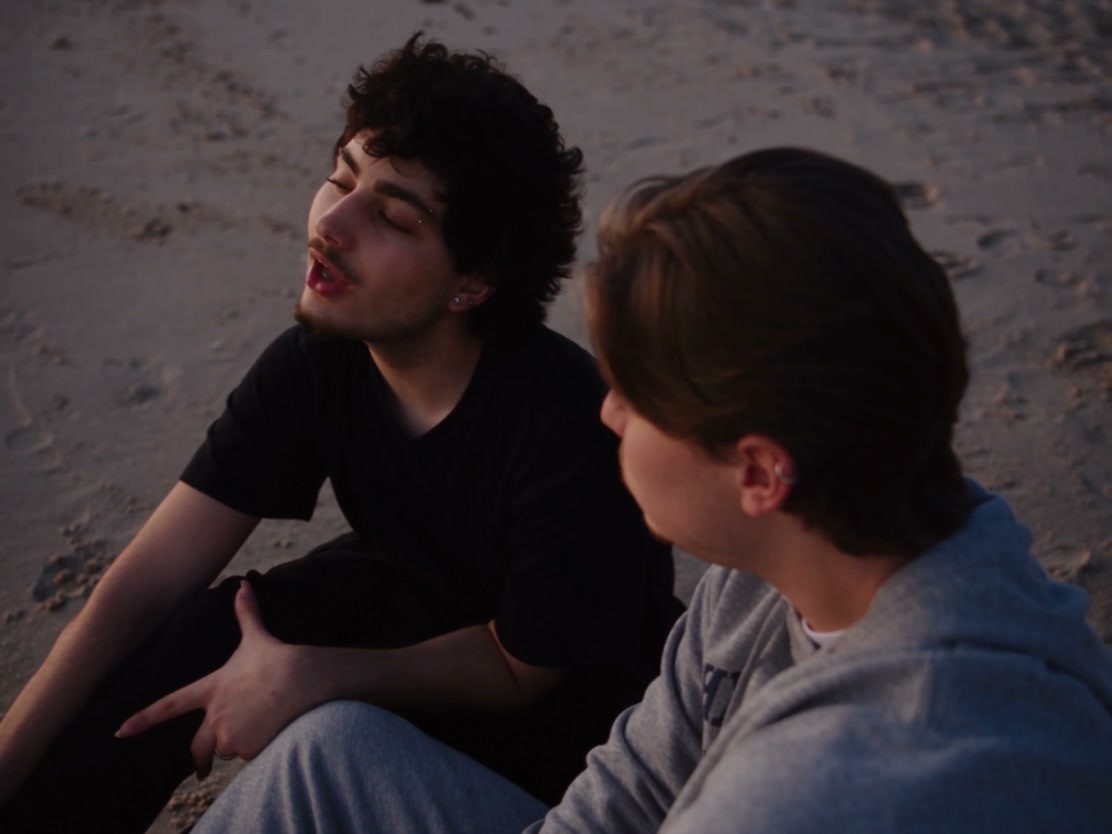
A Raindance AI video works because the performers share a setting and respond to one another. Check the full selected passage before making a vertical crop. A seated person may start near the edge, and the partner may enter from outside the opening frame. A crop that looks good on one still can remove the entrance or a hand gesture later.
For TikTok, Reels or Shorts, keep the wider composition when a tight crop would lose part of the performance. You can place the finished video on a vertical canvas in your editor. Genjutsu AI lets you trim and crop the source; cropping removes picture area rather than creating extra space. Object Swap requires at least 409,600 pixels in each prepared frame, so check a narrow crop before submitting it.
Treat the soundtrack as a separate creative choice. Motion Transfer and Object Swap do not guarantee the original recording or exact lip sync. Listen to the delivered file and add or align a track you can use in your publishing workflow. A Raindance AI generation is a visual transformation, not a music-license purchase or an automatic beat-matching service.
Buy a credit pack once. See the cost before every generation, with the same rates for Motion Transfer and Object Swap.
—
one-timeUSD · one-time payment
One-time credit pack
480Credits
480p · up to 8s total
Up to 8s total at 480p
720p needs at least 520 credits
720p needs at least 520 credits
—
one-timeUSD · one-time payment
One-time credit pack
1,000Credits
480p · up to 16s total
Up to 16s total at 480p
720p · up to 7s total
Or up to 7s total at 720p
—
one-timeUSD · one-time payment
One-time credit pack
1,500Credits
480p · up to 25s total
Up to 25s total at 480p
720p · up to 11s total
Or up to 11s total at 720p
—
one-timeUSD · one-time payment
One-time credit pack
3,300Credits
480p · up to 55s total
Up to 55s total at 480p
720p · up to 25s total
Or up to 25s total at 720p
A 10-second clip uses 600 credits at 480p or 1,300 at 720p.
480p: 60 credits/sec · 720p: 130 credits/sec
Pack allowances are alternative uses of one balance and can cover multiple clips. Each clip must be 4–30 seconds. Combine packs for longer clips or 720p.
Pricing and billing detailsOne-time credit packs. A quote for the selected clip.
A Raindance AI video uses the standard Genjutsu AI rates: 60 credits per billed second at 480p or 130 at 720p. Duration is rounded up, so 4.2 seconds is billed as five seconds. The table shows examples, while your confirmed quote uses the actual prepared source.
| Video duration | 480p | 720p |
|---|---|---|
| 4 seconds | 240 credits | 520 credits |
| 5 seconds | 300 credits | 650 credits |
| 10 seconds | 600 credits | 1,300 credits |
| 30 seconds | 1,800 credits | 3,900 credits |
Coverage below uses base credits; any eligible first-purchase bonus is shown separately. Check your balance against the confirmed quote. The full supplied pier source is about 29 seconds and rounds to 30 billed seconds: 1,800 credits at 480p or 3,900 at 720p. Trim it for a smaller first test. The lowest-priced pack is — for 480 credits; it can cover a short 480p test but not the minimum four-second 720p generation. Check current credit packs and your balance before confirming.
Choose by your starting material and the control you want. A fixed photo template supplies its own scene. Genjutsu AI is an option when you want an existing video to guide the performance and you want to choose between Motion Transfer and Object Swap. Compare required inputs, clip duration, audio assumptions and the actual quote before paying.
Two photos can define your cast, but Genjutsu AI also needs a source video. The page CTA supplies a starting clip, so you can add photos without filming a new performance. You still need to assign the roles and choose your mode; this is not a photo-only generation workflow.
Yes, you can request one-person replacement with Object Swap. Identify the performer by their first action and visible clothing, then provide the intended replacement reference. Ask for the same identity across the selected shots and inspect the partner, hands and background afterward.
Use separate references, distinct visual features and stable role names such as seated performer and approaching performer. Avoid relying only on left and right after the camera cuts. Start with a shorter passage if faces are hidden or bodies overlap. These choices make the brief clearer, but consistent identity still needs to be checked in the result.
This page covers the seaside performance recast commonly searched as Raindance AI. It does not automatically add rain or create a new dance from text. If you want a different weather setting, use a suitable source and describe the intended change, then evaluate what the model produces.
Original-recording audio and exact lip sync are not guaranteed. Review sound in the generated file. Add or align music you are entitled to use in your editor or posting app if needed. Genjutsu AI is an independent service, not an official artist, label or Raindance Film Festival product.
You can browse the examples and prepare your direction, but generation uses paid credits. One-time packs fund the same Motion Transfer and Object Swap rates used elsewhere in the workspace. Shortening the prepared clip reduces the quoted credits at the same resolution; a completed new take uses credits again.
The three clips are supplied trend references, and the how-it-works result is an AI-generated still. They explain the workflow and intended character change. The separate video case study linked below documents a Genjutsu AI example; these Raindance clips do not establish a tested success rate or exact output guarantee.

Start with the pier performance, choose the moment and add the people you want to see in it. Your source clip and starting prompt are ready in the tool above. Pick Motion Transfer or Object Swap, review the quote, and make your version.
Create my Raindance video