Rumpelstiltskin AI
Source clip
The tiptoe dance. Your character in the barn.
Add a clip to estimate credits
Review the cost before you generate.
Source clip
Trend reference
Trend reference
Trend reference
Make a Rumpelstiltskin AI video with a character of your own. Start with the original tiptoe clip, add a clear reference photo, and choose Motion Transfer for a new interpretation or Object Swap for a selected replacement. The sneaky entrance, grin and pointed-foot dance give your remix a starting point you can actually see.
Rumpelstiltskin AI refers to the viral fantasy-style clip of a small character dancing in a barn, often paired with Riff Raff’s track Tip Toe Wing in My Jawwdinz. It looks like an old movie, but the circulating tiptoe scene is AI-generated. Know Your Meme’s origin account traces the video to an August 2026 Instagram collaboration and the music-led meme to late September. The scene is not footage from the real 1987 Rumpelstiltskin film.
For a remix, the recognisable details are practical: a low, sneaky approach, a finger raised toward the lips, an exaggerated grin, the onlooker’s reaction and the dancer’s feet moving through straw. Changing the character while retaining enough of that sequence makes the joke readable. A generic dancing portrait can miss the moment people came to recreate.
A Rumpelstiltskin AI generator may offer a fixed photo template, a character placed over your background, or editing guided by an existing video. Genjutsu AI uses the third workflow. You supply a source clip and character references, then choose the change. The four videos on this page show supplied trend examples; they help explain the format and are not presented as Genjutsu AI test results.
Choose Motion Transfer when you want the source performance to guide a new interpretation. The clip supplies a sequence of movements and camera changes, while your image describes the character who should perform them. You can spend your prompt on the cast, outfit and setting instead of trying to write out every step of the dance.
For a first Rumpelstiltskin AI video, assign one reference to the tiptoe dancer and keep that role consistent. If you also want to replace the onlooker, use a separate image and identify that person by their reaction and position in the opening shot. Role names such as dancer and seated onlooker remain clearer than left and right when the camera cuts.
The body shape in your reference affects the creative direction. An adult in modern clothes makes a different joke from a storybook character in a tailcoat. Begin with one recognisable look, then inspect the crouch, hand gesture and footwork in the result. Motion Transfer uses the source as guidance; matching every cut, expression or step exactly is not guaranteed.
Use Object Swap when the barn scene is already what you want and your main request is a particular replacement. Identify the small dancer in the dark patterned coat, add the intended character image, and describe which identity, clothes and proportions should change. Ask for the onlooker and surroundings to remain consistent with the source.
This is a useful Rumpelstiltskin AI workflow for trying yourself, an original character or a consenting friend in the selected role. A clear reference showing the face and intended outfit is easier to work from than a crowded group photo. For the dance, a full-body reference also communicates trousers and shoes that a headshot cannot show.
Treat replacement as a request to the video model, rather than a promise that only the face will change. Watch for altered hands, clothing edges, straw and body scale. Check the shoe close-ups too: a face can look convincing while the later feet belong to a different outfit. Shortening the source to one clear passage can make those problems easier to evaluate.
| What you want to make | What to prepare | Start with |
|---|---|---|
| A new character performing the tiptoe sequence | Source video + a clear character reference + a focused prompt | Motion Transfer |
| A selected dancer replacement in the barn | Source video + replacement image + an unambiguous target description | Object Swap |
| A remix when you only have a photo | Load the supplied original first, then add your photo | Both modes still require a source video |
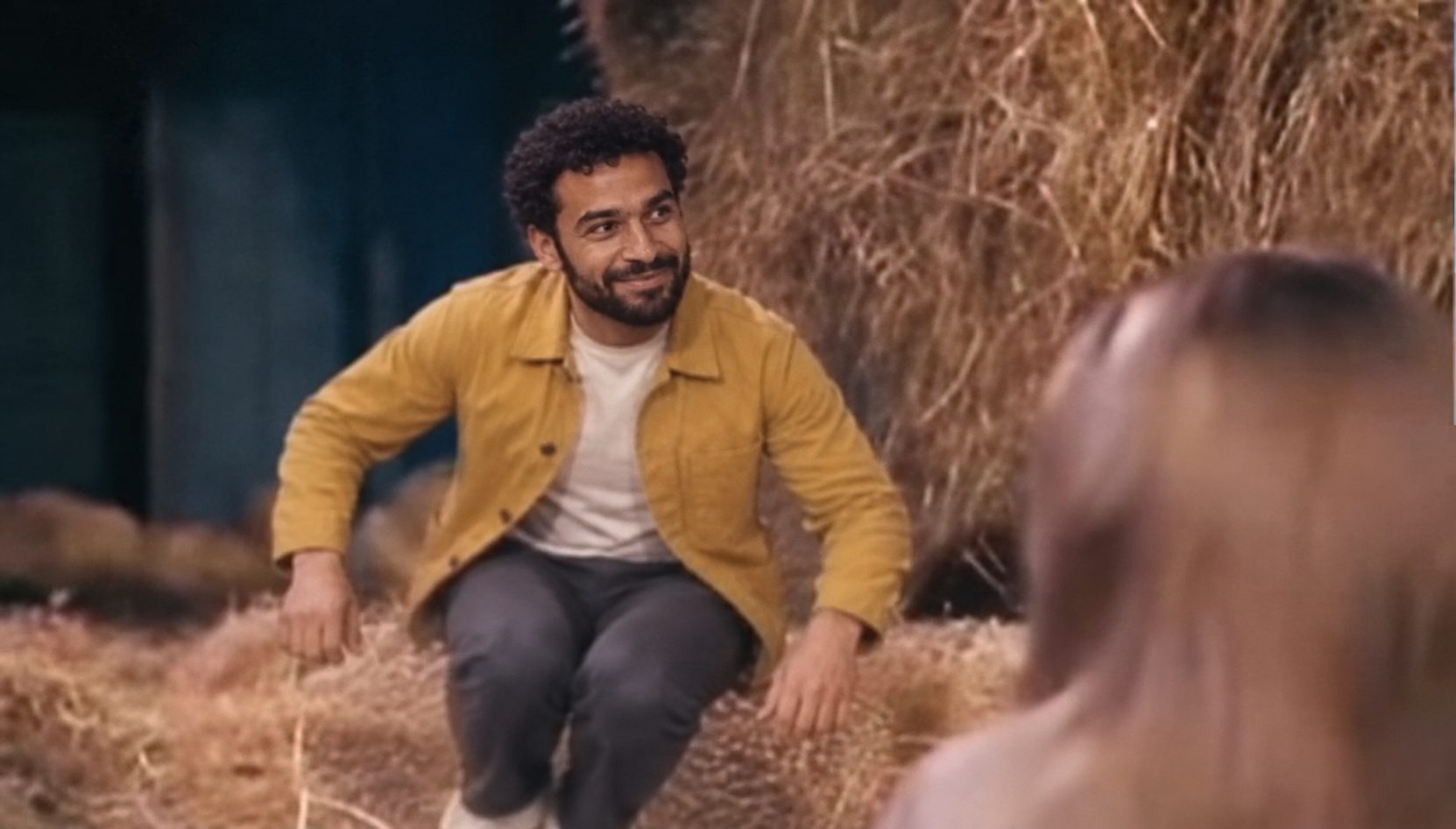
Original video frame AI-generated character reference Illustrative recast · AI-generated still
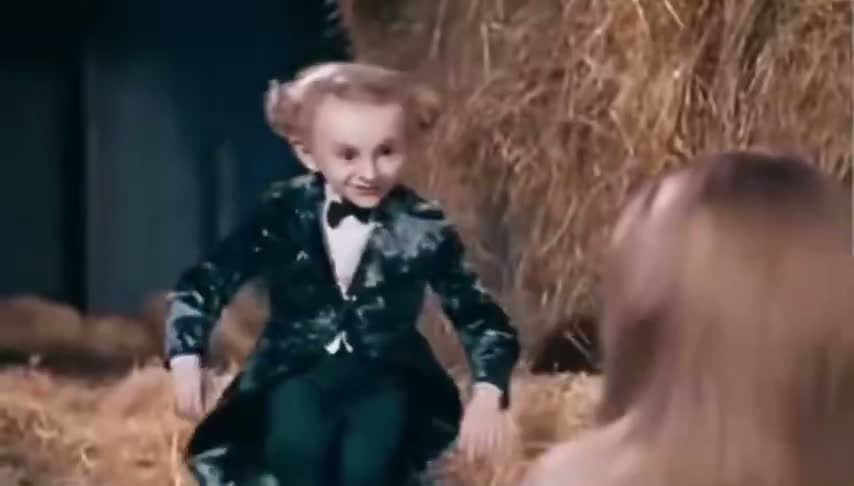
The tool at the top of this page starts with a source clip and an applied, editable Motion Transfer prompt at 480p. Add your own reference images. Use the video control to choose a supplied clip or your own footage. The full clip stays selected until you use Edit clip to change its duration or framing; you can prepare these inputs before signing in. Recreate and the final “Create my Rumpelstiltskin AI video” button open the full workspace.
Watch the whole source, then decide which moment your remix needs. A short test might cover the approach and first dance gesture, while a longer version can include the reactions and shoe close-ups. Use Edit clip and prepare a 4–30 second selection. Keep a complete action in the selection instead of cutting off a raised hand or the start of a step.
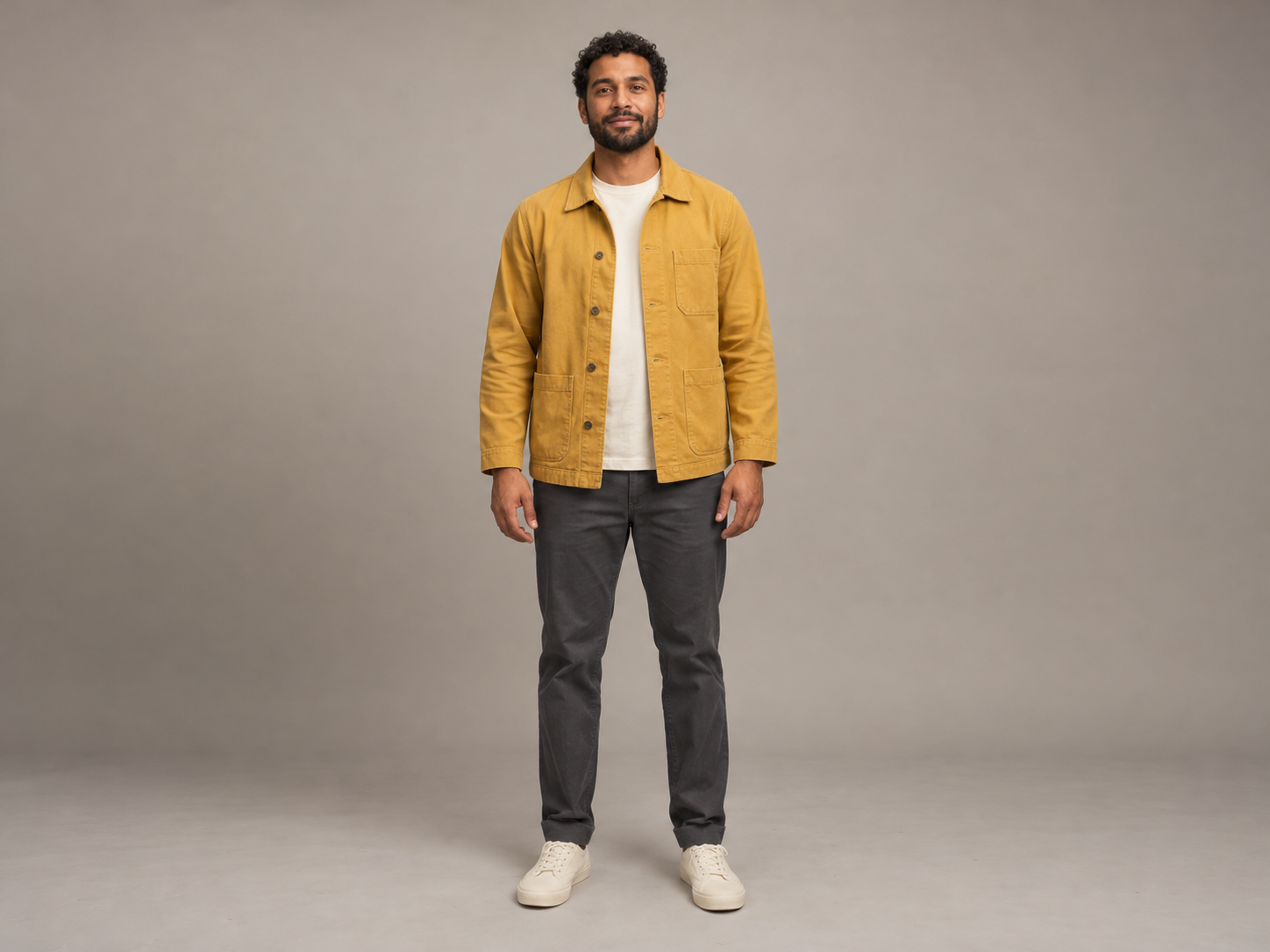
Add one to eight reference images. Start with one sharp image of your intended adult character, with a visible face and a consistent outfit. The mustard-jacket reference shown here is an original AI-generated person. A full-body photo helps describe the entire costume; a separate close-up can clarify the face if both images show the same identity.
Motion Transfer and 480p are the starting settings in the tool above, with the Motion Transfer prompt already applied. Switch to Object Swap for a selected replacement, then edit the prompt to match that mode. Adapt the role, clothes and scope to your actual reference images.
Choose 480p or 720p, then Generate. Sign in if prompted to get the confirmed quote for your prepared clip. Check the inputs and credits, add credits if needed, then choose Confirm & generate when ready. Signing in or paying does not start generation. The prepared clip’s duration is rounded up to a whole second for billing. A completed revision is another generation, so a short first take gives you a smaller test before you try the full source.
Review the result from the first entrance to the last cut. Check that the dancer remains the same character, the onlooker has the intended role and the feet still make sense. Listen to the delivered file as well. Download the take you want, then finish its crop, caption and music in your editing or publishing workflow.
Original video → character reference → illustrative changed frame. The final image is a generated still that explains the intended edit, not a tested video result.
The Motion Transfer example below is already applied in the tool at the top. Edit it to match your images. Switching to Object Swap keeps your current text, so replace or adapt the prompt for that mode. Describe the change in relation to the source, rather than asking for an unrelated dance. These prompts are editable examples, not tested generation recipes. Use the role names and visual details that match your selected clip and references.
Use the source video as the movement and camera reference. Cast the adult man from my reference as the tiptoe dancer. Use his short curly hair, beard, mustard jacket, ivory shirt, charcoal trousers and off-white shoes throughout the selected passage. Follow the crouched approach, expressive hand gestures and tiptoe dance wherever they occur in the source. Keep a recognisable straw-filled barn and keep the seated onlooker in a distinct role. Avoid adding new performers or unrelated scene changes.
Remove any action that your trimmed source does not contain. If you add a second reference, state whether it is another view of the same character or the replacement for the onlooker.
Replace the small dancer wearing the dark patterned tailcoat with the adult man in my reference image. Use the reference face, curly hair, mustard jacket, charcoal trousers and off-white shoes. Match the source pose, gaze, scene scale and warm barn lighting. Apply that identity wherever the dancer appears in the selected clip, including visible clothing and feet. Keep the seated onlooker, straw, barn walls and camera framing as consistent with the source as possible.
This prompt describes the illustrated character change. Inspect the output around the dancer’s hands and feet, and revise the target description if the wrong person changes.
The Rumpelstiltskin AI meme depends on more than a face. The raised heels, pointed steps and onlooker’s reaction carry much of the joke. Watch the complete video before making a vertical crop: a framing choice that fits a close-up can remove the dancer’s shoes or the other character after a cut.
For TikTok, Reels or Shorts, consider placing the wide result on a vertical canvas in your editor when a tight crop would lose the action. Source cropping removes image area; it does not invent space above the head or below the feet. Object Swap needs at least 409,600 pixels in each prepared frame. The supplied original is 854 × 486, just above that threshold, so even a small crop may make it too small for that mode.
Plan sound separately from the visual replacement. Genjutsu AI does not guarantee the original recording, exact lip sync or automatic beat matching. Check the delivered audio and use music available to you through your chosen publishing workflow. Keep the caption focused on the joke, and describe your remix as an AI edit rather than presenting it as a newly discovered film scene.
Buy a credit pack once. See the cost before every generation, with the same rates for Motion Transfer and Object Swap.
—
one-timeUSD · one-time payment
One-time credit pack
480Credits
480p · up to 8s total
Up to 8s total at 480p
720p needs at least 520 credits
720p needs at least 520 credits
—
one-timeUSD · one-time payment
One-time credit pack
1,000Credits
480p · up to 16s total
Up to 16s total at 480p
720p · up to 7s total
Or up to 7s total at 720p
—
one-timeUSD · one-time payment
One-time credit pack
1,500Credits
480p · up to 25s total
Up to 25s total at 480p
720p · up to 11s total
Or up to 11s total at 720p
—
one-timeUSD · one-time payment
One-time credit pack
3,300Credits
480p · up to 55s total
Up to 55s total at 480p
720p · up to 25s total
Or up to 25s total at 720p
A 10-second clip uses 600 credits at 480p or 1,300 at 720p.
480p: 60 credits/sec · 720p: 130 credits/sec
Pack allowances are alternative uses of one balance and can cover multiple clips. Each clip must be 4–30 seconds. Combine packs for longer clips or 720p.
Pricing and billing detailsChoose the moment, then review the credits.
Rumpelstiltskin AI videos use the standard Genjutsu AI rates: 60 credits per billed second at 480p and 130 at 720p. Billing rounds duration up, so a 4.2-second selection counts as five seconds. The examples below let you compare short tests with the supplied full-length source.
| Video duration | 480p | 720p |
|---|---|---|
| 4 seconds | 240 credits | 520 credits |
| 5 seconds | 300 credits | 650 credits |
| 10 seconds | 600 credits | 1,300 credits |
| 22 seconds | 1,320 credits | 2,860 credits |
Coverage below uses base credits; any eligible first-purchase bonus is shown separately. Check your balance against the confirmed quote. The original source is approximately 21.5 seconds, which rounds to 22 billed seconds: 1,320 credits at 480p or 2,860 at 720p. The smallest pack is — for 480 credits. It covers a short 480p test, not this full source or the minimum four-second 720p generation. Trim the clip or choose a suitable pack after checking current pricing. The confirmed quote is based on the actual prepared file.
No. The viral tiptoe scene is AI-generated in the style of an older fantasy film. A real Rumpelstiltskin movie was released in 1987, but that does not make this dancing clip a scene from it. This page is about recreating the AI meme format.
Choose by the change you want. Fixed photo templates supply their own scene, while some tools place a preset dancer over your background. Genjutsu AI is useful when you want an existing video to guide the edit and a choice between Motion Transfer and Object Swap. Compare the actual inputs, duration, audio assumptions and quoted cost.
One photo can define the replacement character, but Genjutsu AI also requires a source video. The tool at the top of this page already has the supplied original selected, so you do not need to film the dance yourself. Recreate opens that source in the full workspace. Add your character photo and describe the role it should play before generating.
You can request that change with Object Swap. Identify the dancer by the dark coat and tiptoe action, and explicitly ask to keep the onlooker consistent. Start with one replacement reference. Review both characters after generation, because a targeted request does not guarantee that surrounding details remain identical.
The source guides the performance, but exact movement, shot timing and identity continuity are not guaranteed. Check transitions, the finger-to-lips gesture and the shoe close-ups. A shorter source with a clearly visible subject is a useful first test before attempting the entire sequence.
Do not assume that the original recording or synchronised soundtrack will be included in the generated output. Review the delivered file and add or align music through your own editing or publishing workflow if needed. A Genjutsu AI generation does not include a music license.
Browsing the examples and opening the supplied source do not spend generation credits. Generating uses paid credits from one-time packs. The full original clip needs more credits than a short test; check the quote after trimming and choosing 480p or 720p.
These four videos were supplied as trend references and are not verified Genjutsu AI results. The three-step walkthrough uses a source frame, an AI-generated character image and an illustrative edited still. It explains the intended workflow without claiming a tested video result or success rate.

The original tiptoe clip is ready. Choose your character, pick the passage that makes the joke work, and try Motion Transfer or Object Swap with a quote you can review before generating.
Create my Rumpelstiltskin AI video