Genjutsu AI / First edit
Genjutsu AI tutorial: make your first video edit
Start with a short performance, choose who or what should change, and review the cost before generating. Follow these six steps with your own footage and references. Our tested dancer example shows what to inspect along the way.
This guide follows the full workspace, where you sign in to upload. On the homepage or a template page, you can prepare files and edit a clip as a guest, then choose Generate to sign in and review the quote. Generation uses paid credits.
Choose one clear moment in your source clip
Your video supplies the performance. Choose a 4–5 second passage for your first attempt, with a visible subject and an action you can recognise. Keep the face, hands and feet in frame when they matter to the edit. The workspace accepts a prepared clip between 4 and 30 seconds.
In our dancer test, the actual first pass used a ten-second 4:3 clip at 960 × 720. We later selected five seconds for the homepage comparison. A five-second finished example does not mean that every production step used a five-second input.
Open the workspace, sign in and choose Source video. MP4, MOV and WebM can enter the browser editor; the prepared upload is H.264 MP4, up to 45 MB. Use Edit reference to trim and check the crop. For Object Swap, keep at least 409,600 pixels per prepared frame, such as 854 × 480.
Show one consistent character or object
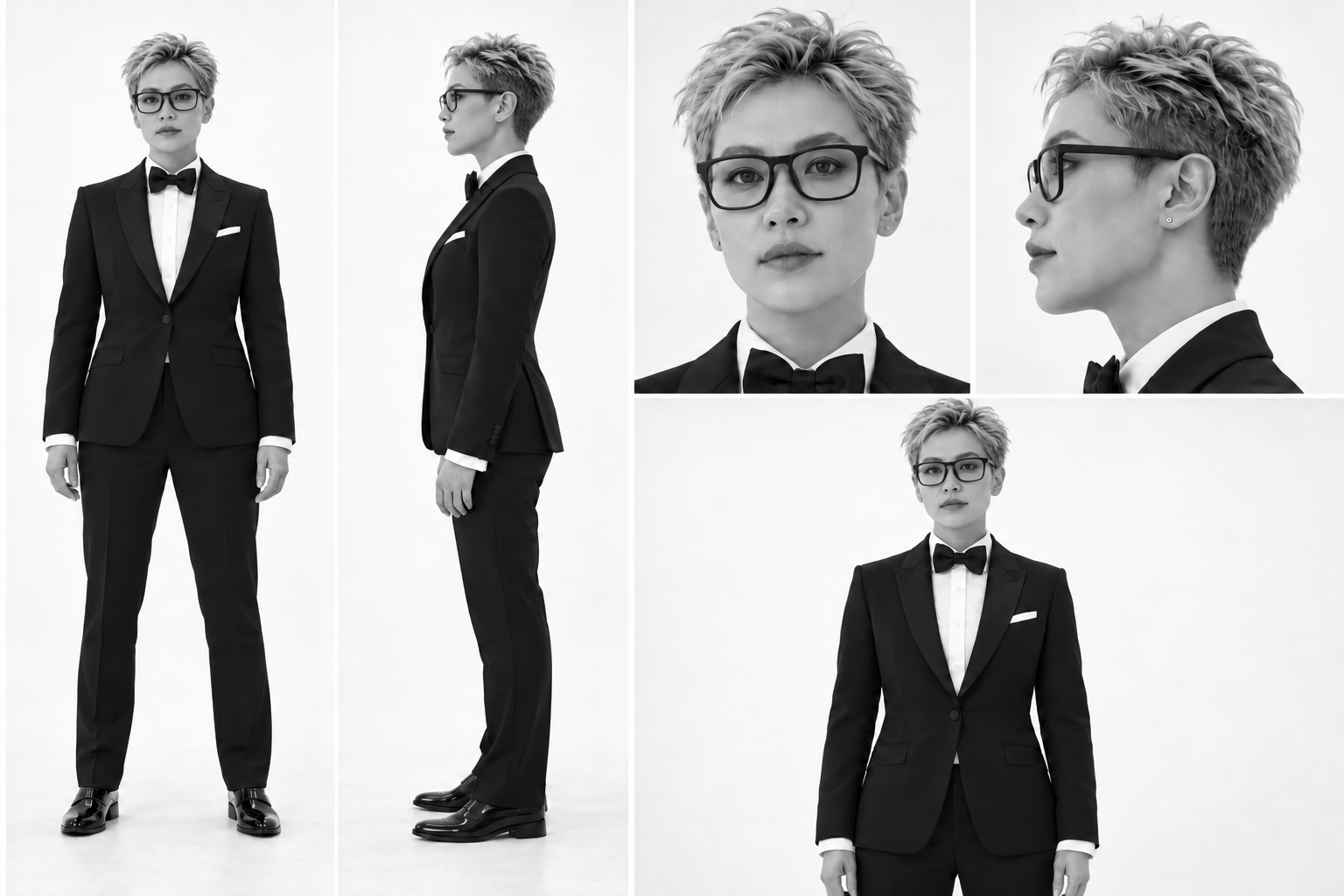
Add 1–8 reference images in JPG, PNG or WebP, up to 8 MB each. Start with a clear face and the clothes or object details you want visible. A full-body view helps explain shoes and clothing; an extra image should add useful information about the same intended appearance.
Our reference kept the same haircut, suit and glasses across all views. The glasses were an explicit part of the character, so we also checked whether they stayed on during the performance. References guide the result; they do not lock an identity in every frame.
For several performers, name each role in your prompt and match it to an image. The Gas Station Dance guide shows how a dancer, selfie character and car-side character need different assignments.
Choose a mode, then describe the change
Used in our character pass
Motion Transfer
Choose this when an existing performance should guide a new character or visual interpretation. Describe the appearance in your references and the parts of the performance that matter.
For a selected replacement
Object Swap
Choose this when your target is a person or object within the shot. Identify it by clothing, position or action, then explain which surrounding subjects and details should stay consistent.
A useful brief says what changes, what to retain and which reference belongs to the target. For example, “replace the dancer in the black jacket” is clearer than “replace the person” in a two-person shot. These are instructions to a generative model, so check the complete output even when your prompt asks to keep something unchanged.
A Motion Transfer starter prompt
Use the source video as the movement and camera reference. Recast the lead performer as the adult character in reference image 1. Use that character’s face, hairstyle, clothes and shoes consistently throughout the selected clip. Follow the source performance and shot order. Keep the existing setting recognisable. Avoid adding new people, text or unrelated scene changes.
Adapted from the approach in our dancer test. This is a starting brief, not the exact production prompt or a promise of an identical result. Paste it into Direction in the workspace and adapt it to your own clip.
Use a short attempt and review the quote
Choose 480p or 720p. Credits are based on the prepared source duration, rounded up to a whole second: 60 credits per second at 480p or 130 at 720p. For example, 5.1 seconds bills as 6 seconds. Trimming the source changes the cost; asking for “a shorter video” in the prompt does not.
- 480p
- 300credits per generation
- 720p
- 650credits per generation
These are estimates for Motion Transfer and Object Swap at the current website rates. The workspace confirms the cost from your prepared clip. They are not the historical cost of our two-pass production example.
First purchase: — for 480 base credits, paid once. That covers one five-second 480p attempt (300 credits). Any first-purchase bonus is shown separately when available and depends on your account’s eligibility.
See all packs and the full cost calculatorOnce your source and references are uploaded, choose Review cost. Check the mode, resolution, duration and quoted credits. If you change an input or the quote expires, review a fresh quote before continuing.
Add credits if needed, then confirm generation
- 1.
Check your inputs
Confirm the source, reference order, direction and permissions. Reviewing a quote does not generate a video.
- 2.
Cover the quoted credits
If your balance is short, choose Get credits & continue. Credit packs are one-time purchases. After payment, wait for confirmed credits and check the restored draft.
- 3.
Confirm the generation
Choose Generate with the displayed credit amount. Payment alone does not start a generation. Follow the request status in the workspace or My videos.
A completed, approved result uses its quoted credits. Failed or rejected requests release the credit hold; an unresolved request may remain on hold while its outcome is checked. A completed take you dislike is still a paid generation. Read the refund policy.
Inspect the whole result before another attempt
Compare the beginning, each camera cut and the ending with your source. In our real character pass, a ten-second input returned about 9.71 seconds. The five-second neon pass also changed timing and needed separate shot alignment. Exact duration, frame rate, audio and unchanged surroundings are not guaranteed.
| Check | What to look for |
|---|---|
| Identity and roles | Look at faces after each cut. Check that the intended character changes and other performers remain distinct. |
| Hands, feet and contact | Pause around gestures, props and crossing limbs. In the dancer example, this includes the hand touching the glasses. |
| Framing and movement | Check cropped heads or shoes, the shot order and the end of the action. Preserve your original output before editing. |
| Sound and publishing | Listen to the delivered file and check music rights separately. Download the take you want to keep within 30 days. |
If you try again, change one thing you can evaluate: a clearer reference, a less ambiguous target or a simpler passage. Another completed attempt uses credits again. If the delivered file cannot play or download, contact support before paying to retry.
Ready for a first edit?
Bring one short clip and a clear character reference. Start with a change you can judge, review the quote and keep your first result for comparison.
Genjutsuai.io is an independent service using the Higgsfield Genjutsu API. Community examples, source clips and our own generated examples are labelled separately. An example’s availability does not grant rights to its underlying footage or music.