Hotel Lobby · Portrait
Source clip
Your clip. Your cast. Your version of the orange-booth performance.
Add a clip to estimate credits
Review the cost before you generate.
Source clip
Source clip
Community example
By franklinmanatee1900Make a Hotel Lobby AI video with Genjutsu AI. Start with a performance clip, add your character references, and choose Motion Transfer to reimagine the scene or Object Swap to replace a selected person or object. Trim the moment you want, frame the shot, and review the credit cost before generating.
The Hotel Lobby AI video trend turns a recognizable two-person music performance into a new cast of characters. Its visual signature is an orange studio, a microphone hanging between the performers, and gestures that move the attention from one person to the other. The name comes from “Hotel Lobby,” the song performed by Quavo and Takeoff on A COLORS SHOW in 2022.
Watch the original COLORS performance to understand the reference. The orange studio performance is the relevant format; searching for hotel interiors can send an image model in the wrong direction.
There are two broad ways to create a version: animate photos into a new performance, or use an existing video to guide the movement. Genjutsu AI follows the second approach. Your source provides the action and timing; your reference images describe the appearance you want to introduce.
Choose Motion Transfer when the movement in your source is the part you want to build around. You might introduce two original characters, change the performers’ styling, or reinterpret the entire orange-booth scene. Upload your clip and references, then describe which appearance belongs to each performer.
A Hotel Lobby AI scene is easier to direct when the two roles are unambiguous. Identify the performer on the left and the performer on the right. Describe clothing, hair, and other visible differences, especially if both references have similar faces or outfits. Keep the first version focused on one visual idea so the result is easier to judge.
Motion Transfer uses the source as guidance. It does not guarantee that every face, gesture, background detail, or camera position will match frame for frame. Compare the complete result with your clip before choosing the version to publish.
Choose Object Swap when you already like the overall footage and want a more focused change. For a Hotel Lobby AI video, the target could be one performer, an outfit, or an object in the scene. Specify the target clearly and explain which surrounding elements should stay consistent.
For example, you could replace the performer on the right with your original character while asking the model to retain the person on the left, the microphone, and the orange setting. This gives you a more specific editing brief than asking it to redesign both people and the whole room at once.
Treat that brief as your intended result, then inspect the output. Object Swap can still alter neighboring details. Pay particular attention when hands pass in front of a face, clothing overlaps another person, or the target becomes partly hidden.
| Your starting point | Suggested mode | What to provide |
|---|---|---|
| A performance you want to reinterpret with a new cast or setting | Motion Transfer | Source clip, character references, and a scene description |
| A shot you want to keep recognizable while changing a selected element | Object Swap | Source clip, replacement reference, and a precise target description |
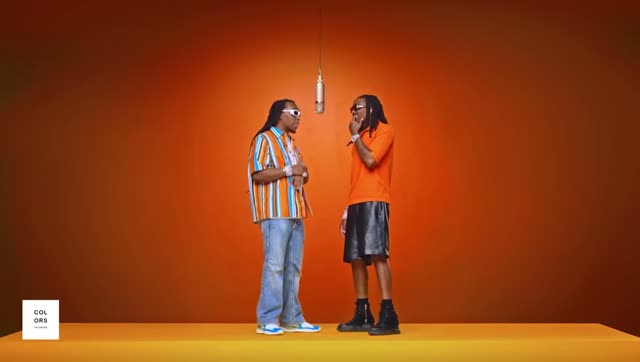
The tool at the top of this page starts with a source clip and an applied, editable Motion Transfer prompt at 480p. Add your own reference images. Use the video control to choose a supplied clip or your own footage. The full clip stays selected until you use Edit clip to change its duration or framing; you can prepare these inputs before signing in. Recreate and the final “Create my Hotel Lobby video” button open the full workspace.
For a first Hotel Lobby AI attempt, choose a short exchange with both subjects clearly visible. A segment with fewer cuts and less overlap gives you fewer changes to evaluate. Watch where the hands, faces, and microphone move before settling on a crop.
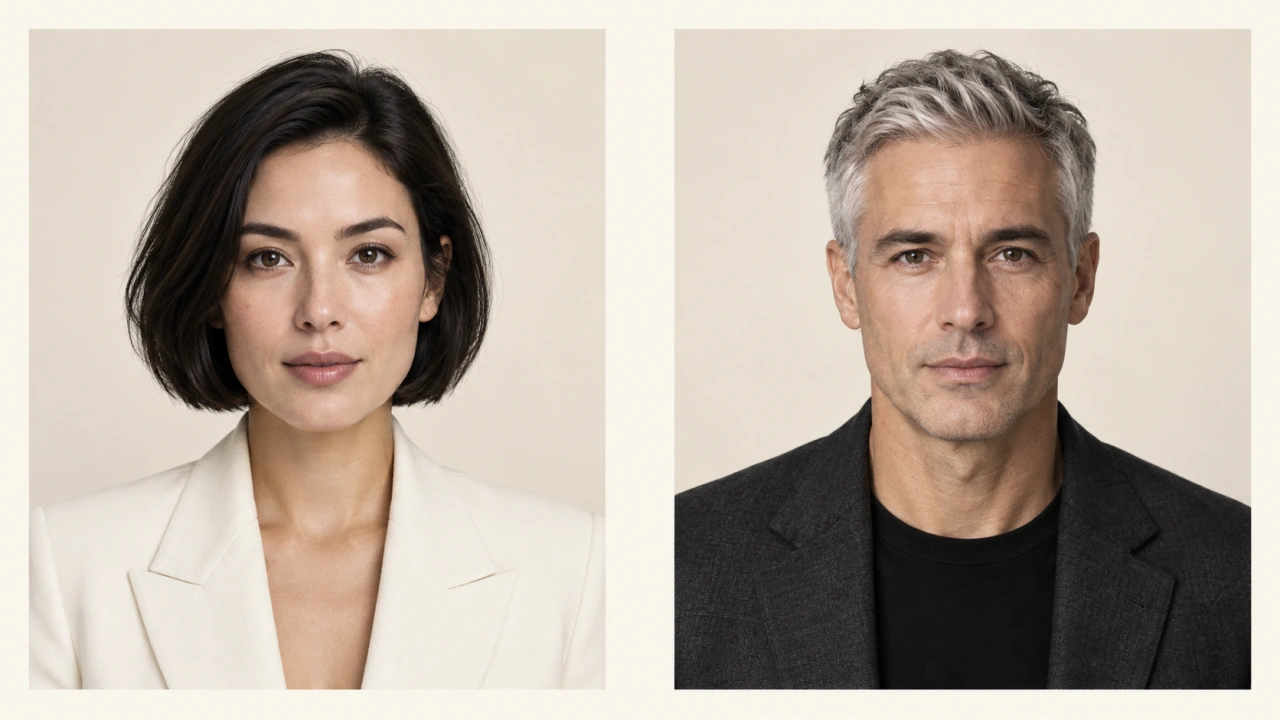
Upload between one and eight reference images. For a two-person recast, a separate clear image of each person makes it easier to explain the left and right assignments. Use references that show the clothing and framing you actually want in the result.
Select Motion Transfer for a broader reinterpretation or Object Swap for a selected replacement. Edit the applied prompt to match that choice. A focused Hotel Lobby AI prompt should explain the intended change, subject placement, and visual details worth retaining.
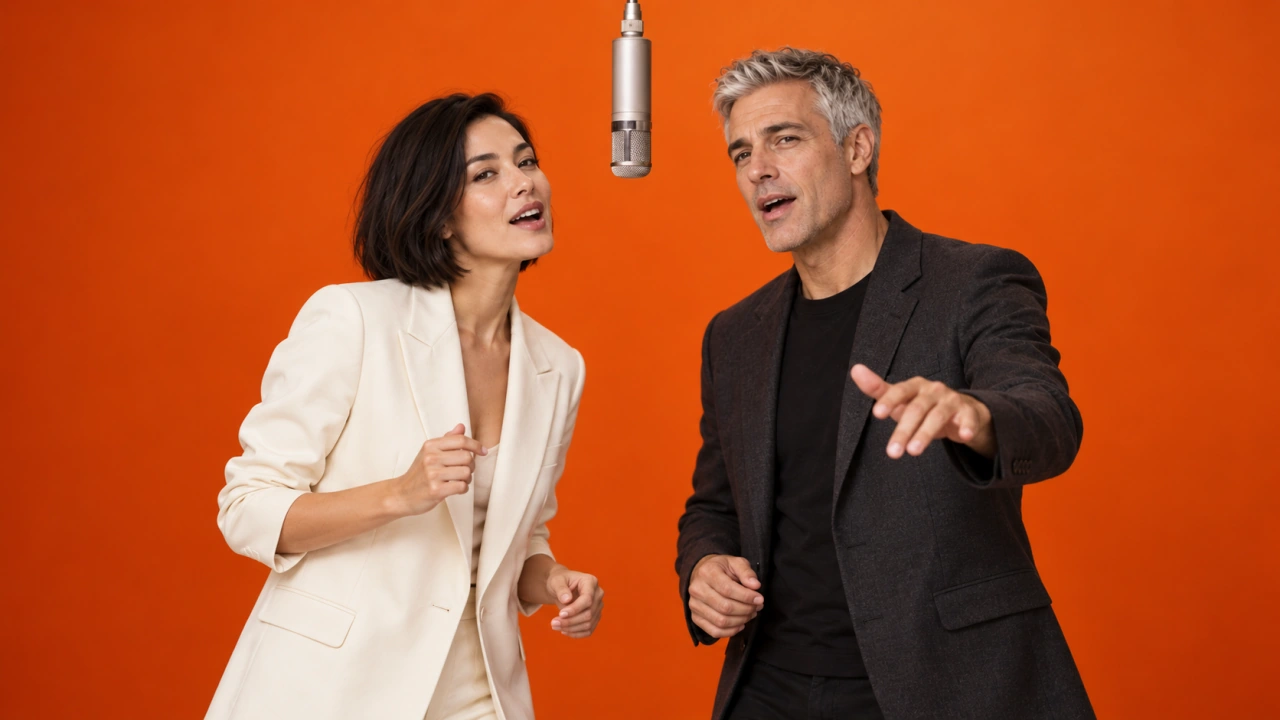
Choose 480p or 720p, then Generate. Sign in if prompted to get the confirmed quote for your prepared clip. Check the inputs and credits, add credits if needed, then choose Confirm & generate when ready. Signing in or paying does not start generation. Once your Hotel Lobby AI video is ready, compare it with the source from beginning to end. Look beyond the opening frame: check facial consistency, hands, clothing, movement, and the point where attention changes between performers.
Download the result you want to keep. Add or align suitable audio in your editing or publishing workflow, and review the finished version with sound before posting.
The Motion Transfer example below is already applied in the tool at the top. Edit it to match your images. Switching to Object Swap keeps your current text, so replace or adapt the prompt for that mode. These prompts are starting points for your own source and references. They describe the intended transformation; they are not pretested guarantees. Change the subject descriptions to match your files, and remove instructions that conflict with the source movement.
Recast the two performers in the source video as the original adult characters shown in my references. Use the first reference for the person on the left and the second for the person on the right. Follow the source’s performance rhythm, gestures, turn-taking, and camera timing. Keep the orange studio and hanging microphone recognizable. Maintain each character’s distinct face, hairstyle, clothing, and position throughout. Avoid additional people, blended identities, and new camera cuts.
For this Hotel Lobby AI prompt, describe any intentional wardrobe or background change after the subject assignments. If a character wears glasses in the reference, state whether they should remain on throughout the selected clip.
Replace only the performer on the right with the original adult character in my reference image. Match the target’s movement, size, position, lighting, and perspective in the source video. Keep the performer on the left, the hanging microphone, and the orange studio as consistent with the source as possible. Preserve the reference character’s face, hairstyle, and outfit. Do not introduce another performer or change the intended camera framing.
Use Object Swap for one clear target first. If your Hotel Lobby AI edit needs several separate changes, evaluate the first result before expanding the brief.
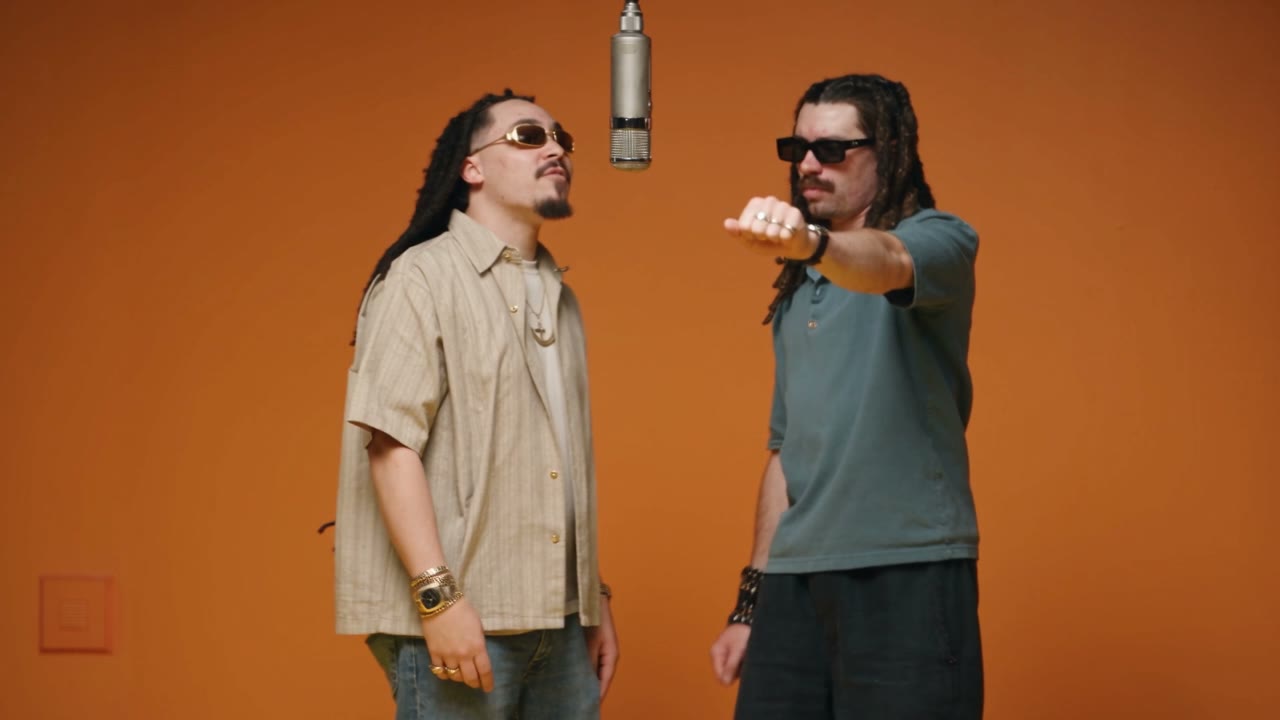
A wide shot gives two performers room to gesture. A vertical crop can work for social video, but it may cut off the person standing near an edge. Preview the whole selected passage in Edit clip and leave enough room for both faces and the microphone throughout the action.
Your Hotel Lobby AI video does not need to begin as a vertical file. If a 9:16 crop loses an essential subject, retain a wider frame and arrange it within a vertical canvas in your editor. Cropping removes picture area; it does not create missing space around the people.
For Object Swap, the prepared source must contain at least 409,600 pixels per frame, such as 854 × 480. An aggressive crop can fall below that threshold even when the original file is large. The prepared clip is checked before generation.
Buy a credit pack once. See the cost before every generation, with the same rates for Motion Transfer and Object Swap.
—
one-timeUSD · one-time payment
One-time credit pack
480Credits
480p · up to 8s total
Up to 8s total at 480p
720p needs at least 520 credits
720p needs at least 520 credits
—
one-timeUSD · one-time payment
One-time credit pack
1,000Credits
480p · up to 16s total
Up to 16s total at 480p
720p · up to 7s total
Or up to 7s total at 720p
—
one-timeUSD · one-time payment
One-time credit pack
1,500Credits
480p · up to 25s total
Up to 25s total at 480p
720p · up to 11s total
Or up to 11s total at 720p
—
one-timeUSD · one-time payment
One-time credit pack
3,300Credits
480p · up to 55s total
Up to 55s total at 480p
720p · up to 25s total
Or up to 25s total at 720p
A 10-second clip uses 600 credits at 480p or 1,300 at 720p.
480p: 60 credits/sec · 720p: 130 credits/sec
Pack allowances are alternative uses of one balance and can cover multiple clips. Each clip must be 4–30 seconds. Combine packs for longer clips or 720p.
Pricing and billing detailsKnow the cost before you generate
Genjutsu AI uses one-time credit packs. Generation currently costs 60 credits per billed second at 480p or 130 credits at 720p. The selected duration is rounded up to the next whole second.
| Video duration | 480p | 720p |
|---|---|---|
| 4 seconds | 240 credits | 520 credits |
| 5 seconds | 300 credits | 650 credits |
| 10 seconds | 600 credits | 1,300 credits |
Coverage below uses base credits; any eligible first-purchase bonus is shown separately. Check your balance against the confirmed quote. A short Hotel Lobby AI test can help you evaluate your references before spending credits on a longer version. The lowest-priced pack is currently — for 480 credits, which does not cover the minimum 720p generation. Check current credit packs and the confirmed quote for your chosen settings. Creating the scene, adding music, and publishing the finished edit are separate parts of the workflow.
This workflow needs a source video as well as reference images. Two photos describe the cast, but they do not supply the performance. If you want to create movement from photos alone, you need an image-to-video workflow instead.
The source guides the transformation, but exact choreography, expressions, and camera motion are not guaranteed. For a Hotel Lobby AI video, compare the timing of gestures and transitions as well as the characters’ appearance. Start with a short, clear segment when consistency matters most.
Yes, you can request a single-person replacement with Object Swap. Identify the person by position and visible details, provide the replacement reference, and describe what should remain consistent. Check the other performer and shared objects for unintended changes.
Do not assume that it does. Original audio and precise lip sync are not guaranteed by these workflows. Review the generated file, then add or align audio you are entitled to use in your editor or publishing platform. The video generation purchase does not provide a license to the song.
Possible causes include ambiguous references, similar-looking subjects, hidden faces, and instructions that do not distinguish the two roles. Try clearer images, explicit left-right assignments, and a shorter source segment with less overlap. Evaluate one change at a time rather than adding conflicting instructions.
Genjutsuai.io is an independent website that offers Motion Transfer and Object Swap through the Higgsfield Genjutsu API. Our workspace, credit packs, and supported settings are the ones shown here; Higgsfield’s own website may offer different products or options.

Bring a clip with a performance you like and references for the cast you want. Choose the moment, frame both subjects, and use the mode that fits the change. Your first Hotel Lobby AI video starts with a clear source and a clear creative decision.
Create my Hotel Lobby video